How to Customize Android Without Root
- Start with the changes Android already allows
- Make a reversible baseline
- Change wallpaper and system color
- Organize the existing launcher first
- Try a third-party launcher carefully
- Use widgets as instruments, not wallpaper
- Tune notifications per app
- Edit Quick Settings and the lock screen
- Customize for comfort and access
- Know the no-root boundary
- Sources
Start with the changes Android already allows
You can customize Android without root by changing the wallpaper and color theme, organizing home screens, choosing a launcher, adding widgets, tuning notifications, rearranging Quick Settings, adjusting text and display size, and selecting keyboard, sound, and accessibility options. Exact menus and capabilities vary by device maker, Android version, launcher, region, and administrator policy.
Make a reversible baseline
Capture each home screen, app folder, widget, and Quick Settings layout. Write down the current launcher and icon grid. Confirm that important data is backed up, but remember that not every launcher exports layouts and not every widget restores automatically.
Change one layer at a time. Use the phone for a day before adding another. This makes battery drain, crashes, missing notifications, and awkward gestures much easier to trace.
Change wallpaper and system color
Start in the device's wallpaper and style settings. Many Android builds derive system colors from a wallpaper or offer a palette.
Check contrast in light and dark modes, outdoors, and at low brightness. Aesthetic color is not the same as accessible contrast. If text, icons, or focus indicators become hard to distinguish, choose a simpler background or stronger system palette.
Avoid wallpaper apps demanding contacts, messages, accessibility control, device administration, or other permissions unrelated to displaying images. Download art only where you have permission to use it.
Organize the existing launcher first
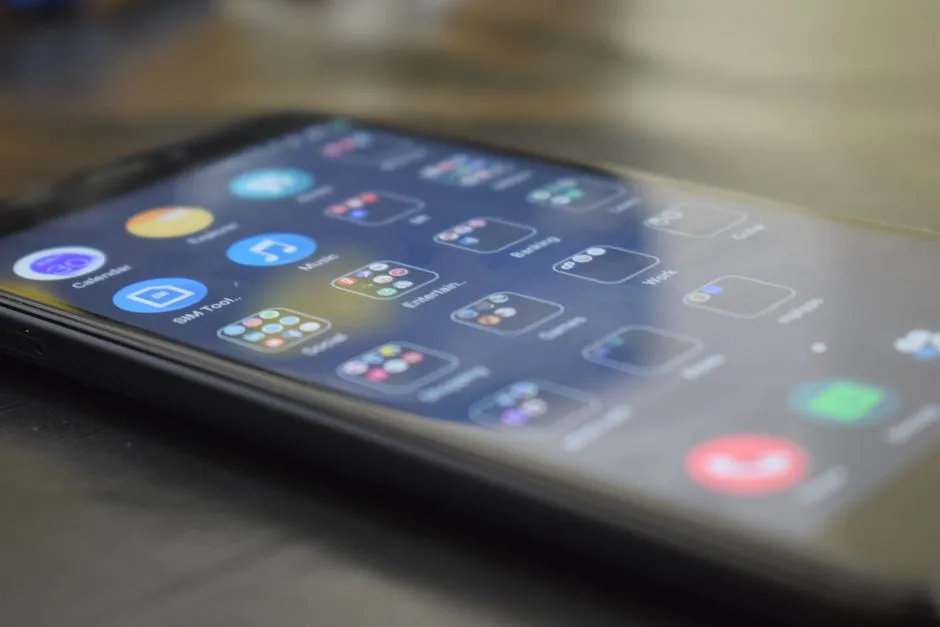
Before replacing the launcher, test its grid, icon size, labels, app drawer, search, page order, dock, notification dots, gesture, and rotation settings. Remove duplicate shortcuts rather than uninstalling the underlying app accidentally. Use folders named by action—Travel, Create, Pay, Read—if that helps retrieval.
Keep essential communication, maps, authenticator, and emergency tools easy to reach.
Try a third-party launcher carefully
A launcher replaces the home-screen and app-drawer experience; it does not replace Android itself. Choose one from a reputable developer with a current privacy policy, maintenance history, and permissions that match its features. Review recent change logs and independent security reporting where available.
After installation, set it as the default home app through the prompt or default-app settings. Re-create only one page first. Test home and back gestures, app search, recent apps, widgets, rotation, work profile, accessibility services, and notifications.
Export the layout if the launcher offers a local backup you understand. To reverse course, select the former launcher as the default and then remove the test launcher. Do not clear the old launcher's storage unless you accept losing its layout.
Use widgets as instruments, not wallpaper
Add widgets that answer recurring questions: next appointment, weather, tasks, playback, battery, or notes. Resize them and check whether they refresh reliably. Each widget belongs to an app and may expose information on the unlocked home screen, so avoid sensitive messages, health data, account balances, or work details where others can see them.
Widgets can consume network, battery, and attention depending on what they do. Remove one that refreshes badly or opens the wrong action instead of assigning it permanent rent because it matches the wallpaper.
Tune notifications per app
Open notification settings and review noisy apps individually. On supported versions, apps may divide alerts into categories, letting you keep direct messages while silencing promotions. Use silent delivery for information that matters but does not require interruption.
Do not disable security, account, two-factor, work, medication, transport, emergency, or device-management alerts without understanding the consequences. If an app asks for notification access, remember that this permission may allow it to read or interact with notifications; grant it only when the core function justifies that visibility.
Edit Quick Settings and the lock screen
Rearrange Quick Settings so the controls you genuinely use appear first. Remove tiles that cause accidental changes and learn which ones reveal location, hotspot, wallet, smart-home, or work information on a locked device.
Lock-screen shortcuts, notification previews, clock styles, and always-on display options vary widely. Choose privacy before decoration: hide sensitive notification content and test what a stranger can see or activate without unlocking.
Customize for comfort and access
Display size, text size, bold text, color correction, magnification, high-contrast options, screen timeout, reduced motion, hearing features, switch access, and screen readers can matter more than icon shape. Use the built-in accessibility menu and official device documentation.
Do not enable a downloaded app's accessibility service merely to unlock cosmetic tricks. Accessibility control can be highly powerful. Read the permission screen, developer identity, data practices, and exact need; deny it when the function does not justify the access.
Know the no-root boundary
Without root or a custom OS, ordinary apps cannot safely rewrite every system component. Manufacturer limits may prevent complete status-bar replacement, global fonts, deep gesture changes, removal of protected system packages, or unrestricted automation. That boundary is often useful: it preserves more of Android's app sandbox and update path.
If a customization guide demands bootloader unlocking, USB debugging, shell commands, device-owner enrollment, sideloaded packages, or accessibility control, it has moved beyond ordinary theming. Read the custom-ROM preparation checklist and evaluate the new risk separately rather than clicking through.
Browse safer customization for more reversible experiments. A successful setup makes frequent actions clearer and the phone calmer. It does not require every screen to prove you have discovered gradients.